Lab 3.1: Linux System Information and Permissions
VMs Needed
- Windows
- Ubuntu
- Alma
Please ensure that these VMs are running before you begin the lab. There is no need to log on to the console of any of the course VMs except for Windows.
Lab Video
Linux System Information and Permissions
Objectives
- Familiarize the student with various command-line utilities for gathering system information about Linux/Unix systems.
- Demonstrate tools available for identifying executables with elevated permission settings in Linux/Unix.
Lab Preparation
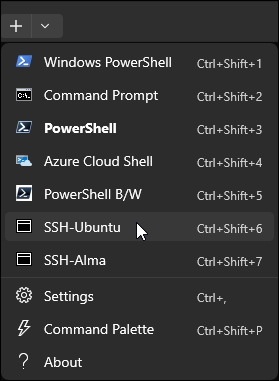
Open an SSH connection to the Ubuntu VM in Windows Terminal. Click the down arrow icon and select SSH-Ubuntu from the drop-down menu.
Part 1: System Information on Ubuntu Host
Environment Check
Before proceeding, ensure that you are working in Windows Terminal in a SSH session to the Ubuntu VM.

Background: The first task you will usually do in auditing a Linux host is to determine what type of Linux system it is. This will involve profiling the distribution, kernel version, and other "demographic" information about the host being examined.
Instructions: Use the commands listed below to gather information about the Ubuntu server. Record your results in the area provided.
Live Data in Use!
Your answers may vary a bit from the screenshots shown here due to automatic updating on the VMs. Even if the specifics are different, the discussion will still be relevant!
1. Gather information about the Linux distribution installed on the host by running this command:
lsb_release -a
What distribution is this host running?
What version number is it?
Use this information to perform an internet search to see if the version is still supported and when its likely end-of-life is scheduled.
Discussion of Results
1. Gather information about the Linux distribution installed on the host by running this command:
lsb_release -a
Sample Results
student@ubuntu:$lsb_release -a
No LSB modules are available.
Distributor ID: Ubuntu
Description:    Ubuntu 24.04.2 LTS
Release:        24.04
Codename:       noble
What distribution is this host running? Ubuntu
What version number is it? 24.04.2 LTS
Use this information to perform an internet search to see if the version is still supported and when its likely end-of-life is scheduled.
This version should have mainstream support until at least April 2029.
2. Use the following command to get information about the Linux kernel in use on this host:
uname -a
What version of the kernel is running? This will be the first numeric value in the result.
Look at the kernel.org website to see what the current kernel releases are. How many versions behind is this host?
What was the compile date for this kernel?
Discussion of Results
2. Use the following command to get information about the Linux kernel in use on this host:
uname -a
Sample Results
student@ubuntu:$uname -a
Linux Ubuntu-99 6.11.0-1012-azure #12~24.04.1-Ubuntu SMP Mon Mar 10 19:00:39 UTC 2025 x86_64 x86_64 x86_64 GNU/Linux
Live Data in Use!
Remember that your data may differ from the screenshots!
What version of the kernel is running? This will be the first numeric value in the result. In the screenshot, the version is 6.11.0-1012-azure.
Look at the kernel.org website to see what the current kernel releases are. How many versions behind is this host? This may vary, but you will likely be SEVERAL versions behind.
What was the compile date for this kernel? In the screenshot, the date is Mon Mar 10 19:00:39 UTC 2025.
3. Run these two commands to obtain a list of software packages that could be upgraded on this host:
sudo apt update
apt list --upgradable
Count the packages ready for an upgrade using the grep command to count lines:
apt list --upgradable | grep -c upgradable
How many packages are currently eligible for an update?
Does it appear that the administrators are regularly updating this host?
Discussion of Results
3. Run these two commands to obtain a list of software packages that could be upgraded on this host:
sudo apt update
apt list --upgradable
Count the packages ready for upgrade using the grep command to count lines.
apt list --upgradable | grep -c upgradable
Sample Results
student@ubuntu:$sudo apt update
Hit:1 http://azure.archive.ubuntu.com/ubuntu noble InRelease
Get:2 http://azure.archive.ubuntu.com/ubuntu noble-updates InRelease [126 kB]
Get:3 http://azure.archive.ubuntu.com/ubuntu noble-backports InRelease [126 kB]
Get:4 http://azure.archive.ubuntu.com/ubuntu noble-security InRelease [126 kB]
Hit:5 https://download.docker.com/linux/ubuntu noble InRelease
Hit:6 https://packages.microsoft.com/repos/azure-cli noble InRelease
Get:7 http://azure.archive.ubuntu.com/ubuntu noble-updates/main amd64 Packages [1207 kB]
Get:8 http://azure.archive.ubuntu.com/ubuntu noble-updates/main amd64 Components [161 kB]
Get:9 http://azure.archive.ubuntu.com/ubuntu noble-updates/universe amd64 Packages [1098 kB]
Get:10 http://azure.archive.ubuntu.com/ubuntu noble-updates/universe amd64 Components [376 kB]
Get:11 http://azure.archive.ubuntu.com/ubuntu noble-updates/restricted amd64 Components [212 B]
Get:12 http://azure.archive.ubuntu.com/ubuntu noble-updates/multiverse amd64 Components [940 B]
Get:13 http://azure.archive.ubuntu.com/ubuntu noble-backports/main amd64 Components [7068 B]
Get:14 http://azure.archive.ubuntu.com/ubuntu noble-backports/universe amd64 Components [16.4 kB]
Get:15 http://azure.archive.ubuntu.com/ubuntu noble-backports/restricted amd64 Components [216 B]
Get:16 http://azure.archive.ubuntu.com/ubuntu noble-backports/multiverse amd64 Components [212 B]
Get:17 http://azure.archive.ubuntu.com/ubuntu noble-security/main amd64 Packages [958 kB]
Get:18 http://azure.archive.ubuntu.com/ubuntu noble-security/main Translation-en [172 kB]
Get:19 http://azure.archive.ubuntu.com/ubuntu noble-security/main amd64 Components [21.5 kB]
Get:20 http://azure.archive.ubuntu.com/ubuntu noble-security/universe amd64 Packages [865 kB]
Get:21 http://azure.archive.ubuntu.com/ubuntu noble-security/universe Translation-en [189 kB]
Get:22 http://azure.archive.ubuntu.com/ubuntu noble-security/universe amd64 Components [52.2 kB]
Get:23 http://azure.archive.ubuntu.com/ubuntu noble-security/restricted amd64 Packages [1322 kB]
Get:24 http://azure.archive.ubuntu.com/ubuntu noble-security/restricted Translation-en [285 kB]
Get:25 http://azure.archive.ubuntu.com/ubuntu noble-security/restricted amd64 Components [212 B]
Get:26 http://azure.archive.ubuntu.com/ubuntu noble-security/multiverse amd64 Components [212 B]
Fetched 7112 kB in 2s (3705 kB/s)
Reading package lists... Done
Building dependency tree... Done
Reading state information... Done
163 packages can be upgraded. Run 'apt list --upgradable' to see them.
....
[Results Truncated]
Live Data in Use!
Remember that your data may differ from the screenshots!
Roughly how many packages are currently eligible for an update? In the screenshot above, there are 163 available. Your results may be higher or lower.
Does it appear that the administrators are regularly updating this host? NO. Probably 5-20 patches are released per month, so this host is VERY out of date!
4. Run this command to sample the modification dates on several binaries installed on the system.
ls -alt /usr/bin | head -30
The files are sorted by reverse order of their modification date. Using these dates, when do you think the host was last patched?
Discussion of Results
4. Run this command to sample the modify dates on several binaries installed on the system.
ls -alt /usr/bin | head -30
Sample Results
student@ubuntu:$ls -alt /usr/bin | head -30
total 769548
drwxr-xr-x  2 root root        36864 Apr  7 14:26 .
lrwxrwxrwx  1 root root           22 Apr  7 14:26 inspec -> /opt/inspec/bin/inspec
-rwxr-xr-x  1 root root     50430661 Apr  7 14:12 fleetctl
-rwxr-xr-x  1 root root    173119808 Apr  7 14:12 fleet
-rwxr-xr-x  1 root root        14720 Mar 31 18:22 lzmainfo
lrwxrwxrwx  1 root root            2 Mar 31 18:22 unxz -> xz
-rwxr-xr-x  1 root root        89008 Mar 31 18:22 xz
lrwxrwxrwx  1 root root            2 Mar 31 18:22 xzcat -> xz
lrwxrwxrwx  1 root root            6 Mar 31 18:22 xzcmp -> xzdiff
-rwxr-xr-x  1 root root         7422 Mar 31 18:22 xzdiff
lrwxrwxrwx  1 root root            6 Mar 31 18:22 xzegrep -> xzgrep
lrwxrwxrwx  1 root root            6 Mar 31 18:22 xzfgrep -> xzgrep
-rwxr-xr-x  1 root root        10333 Mar 31 18:22 xzgrep
-rwxr-xr-x  1 root root         1813 Mar 31 18:22 xzless
-rwxr-xr-x  1 root root         2190 Mar 31 18:22 xzmore
...
[Results Truncated]
Live Data in Use!
Remember that your data may differ from the screenshots!
The files are sorted by reverse order of their modification date. Using these dates, when do you think the host was last patched? In the results above, the last date a binary was modified is Apr 7.
5. Use this command to find files on the host with the SUID bit set in their permissions. Remember that this bit tells the host to execute a binary with the permissions of the owner.
sudo find / -type f -perm /4000
Does this seem like an appropriate number of SUID binaries to have on this system?
If not, what tools installed on the system seem to be responsible for the high number?
Discussion of Results
5. Use this command to find files on the host with the SUID bit set in their permissions. Remember that this bit tells the host to execute a binary with the permissions of the owner.
sudo find / -type f -perm /4000
Sample Results
student@ubuntu:$sudo find / -type f -perm /4000
/var/snap/microk8s/6541/opt/cni/bin/install
/var/snap/microk8s/6541/opt/cni/bin/calico-ipam
/var/snap/microk8s/6541/opt/cni/bin/calico
/var/snap/microk8s/common/var/lib/containerd/io.containerd.snapshotter.v1.overlayfs/snapshots/80/fs/bin/umount
/var/snap/microk8s/common/var/lib/containerd/io.containerd.snapshotter.v1.overlayfs/snapshots/80/fs/bin/mount
...
[Results Truncated]
Sample Results
student@ubuntu:$sudo find / -type f -perm /4000 | wc -l
find: ‘/proc/32127/task/32127/fdinfo/6’: No such file or directory
find: ‘/proc/32127/fdinfo/5’: No such file or directory
123
Live Data in Use!
Remember that your data may differ from the screenshots!
Does this seem like an appropriate number of SUID binaries to have on this system? No. It seems quite high. We normally see no more than a couple of dozen SUID binaries on Linux systems.
If not, what tools installed on the system seem to be responsible for the high number? On the Ubuntu host, it seems to be software installed as "Snaps," particularly the snap for the microk8s Kubernetes service.
Leave your connection to the Ubuntu Server open for use in later labs.
Part 2: System Information on Alma Host
Background: In this section of the lab, you will run a variety of tools to gather information about the Alma Linux host under examination.
Environment Check
Before proceeding, ensure that you are working in Windows Terminal in a SSH session to the VM.

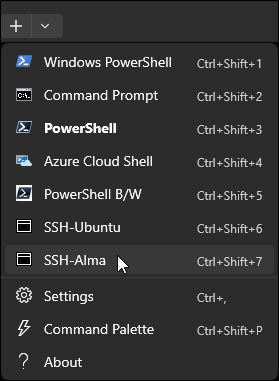
Instructions: Open an SSH connection to the Alma VM in a new Windows terminal tab by clicking the down arrow and choosing SSH-Alma from the menu.
Use the commands listed below to gather information about the Alma host.
Live Data in Use!
Your answers may vary a bit from the screenshots shown here due to automatic updating on the VMs. Even if the specifics are different, the discussion will still be relevant!
1. Alma Linux does not implement the older lsb_release command. Instead, you will gather information about the Linux distribution installed on the host by running this command:
cat /etc/os-release
What distribution is this host running?
What version number is it?
Use this information to perform an internet search to see if the version is still supported and when its likely end-of-life is scheduled.
Discussion of Results
1. Gather information about the Linux distribution installed on the host by running this command:
cat /etc/os-release
Sample Results
[student@alma ~]$ cat /etc/os-release
NAME="AlmaLinux"
VERSION="9.6 (Sage Margay)"
ID="almalinux"
ID_LIKE="rhel centos fedora"
VERSION_ID="9.6"
PLATFORM_ID="platform:el9"
PRETTY_NAME="AlmaLinux 9.6 (Sage Margay)"
ANSI_COLOR="0;34"
LOGO="fedora-logo-icon"
CPE_NAME="cpe:/o:almalinux:almalinux:9::baseos"
HOME_URL="https://almalinux.org/"
DOCUMENTATION_URL="https://wiki.almalinux.org/"
BUG_REPORT_URL="https://bugs.almalinux.org/"

ALMALINUX_MANTISBT_PROJECT="AlmaLinux-9"
ALMALINUX_MANTISBT_PROJECT_VERSION="9.6"
REDHAT_SUPPORT_PRODUCT="AlmaLinux"
REDHAT_SUPPORT_PRODUCT_VERSION="9.6"
SUPPORT_END=2032-06-01
What distribution is this host running? Alma Linux
What version number is it? 9.6 (Sage Margay)
Use this information to perform an internet search to see if the version is still supported and when its likely end-of-life is scheduled. Alma 9.x end-of-life should be around the year 2032 or later. Note that an end of support date is given in the command output above.
2. Use the following command to get information about the Linux kernel in use on this host:
uname -a
What version of the kernel is running? This will be the first numeric value in the result (it will end with ".x86_64").
Look at the kernel.org website to see what the current kernel releases are. Notice that the version of the kernel used on this this host does not seem to be listed. Red Hat Enterprise Linux (which AlmaLinux is based upon) maintains its own kernel versions. Better information is available from the Red Hat website.
https://access.redhat.com/articles/3078
What was the compile date for this kernel?
Discussion of Results
2. Use the following command to get information about the Linux kernel in use on this host:
uname -a
Sample Results
[student@alma ~]$ uname -a
Linux Alma-99 5.14.0-570.12.1.el9_6.x86_64 #1 SMP PREEMPT_DYNAMIC Tue May 13 06:11:55 EDT 2025 x86_64 x86_64 x86_64 GNU/Linux
What version of the kernel is running? This will be the first numeric value in the result (it will end with ".x86_64"). In the screenshot above, the version is 5.14.0-570.12.1.el9_6.x86_64.
Look at the kernel.org website to see what the current kernel releases are. Notice that the version of the kernel used on this host does not seem to be listed. Red Hat Enterprise Linux (which AlmaLinux is based on) maintains their own kernel versions. Better information is available from the Red Hat website. You may well be several versions behind.
https://access.redhat.com/articles/3078
What was the compile date for this kernel?
In the screenshot, it is Tue May 13 06:11:55 EDT 2025.
3. Run the command to obtain a list of software packages that could be upgraded on this host
sudo yum check-update
Roughly how many packages are currently eligible for an update (it's okay to guess)?
Does it appear that the administrators are regularly updating this host?
Discussion of Results
3. Run the command to obtain a list of software packages that could be upgraded on this host.
sudo yum check-update
Sample Results
[student@alma ~]$ sudo yum check-update
...
NetworkManager.x86_64                       1:1.52.0-4.el9_6            baseos
NetworkManager-cloud-setup.x86_64           1:1.52.0-4.el9_6            appstream
NetworkManager-libnm.x86_64                 1:1.52.0-4.el9_6            baseos
NetworkManager-team.x86_64                  1:1.52.0-4.el9_6            baseos
NetworkManager-tui.x86_64                   1:1.52.0-4.el9_6            baseos
WALinuxAgent.noarch                         2.7.0.6-11.el9              appstream
WALinuxAgent-udev.noarch                    2.7.0.6-11.el9              appstream
almalinux-gpg-keys.x86_64                   9.6-1.el9                   baseos
almalinux-release.x86_64                    9.6-1.el9                   baseos
almalinux-repos.x86_64                      9.6-1.el9                   baseos
alternatives.x86_64                         1.24-2.el9                  baseos
...
[Results Truncated]
Live Data in Use!
Remember that your data may differ from the screenshots!
A rough count of missing patches can be obtained by counting the lines of output from the yum check-update command with the wc (word count program). The actual number of missing patches will be slightly lower, since some lines in the output are informational, and don't list obsolete packages.
Sample Results
[student@alma ~]$ sudo yum check-update | wc -l
48
Live Data in Use!
Remember that your data may differ from the screenshots!
Roughly how many packages are currently eligible for update (it's okay to guess)? Accounting for some extra lines in the output, the screenshot above still shows over 40 packages in need of updates. Your results may be higher or lower than the screenshot.
Does it appear that the administrators are regularly updating this host? No. It seems to be well out of date.
4. Run this command to sample the modify dates on several binaries installed on the system.
ls -alt /usr/bin | head -30
The files are sorted by reverse order of their modification date. Using these dates, when do you think the host was last patched?
Discussion of Results
4. Run this command to sample the modify dates on several binaries installed on the system.
ls -alt /usr/bin | head -30
Sample Results
[student@alma ~]$ ls -alt /usr/bin | head -30
ls -alt /usr/bin | head -30
total 56304
dr-xr-xr-x.  2 root root   24576 Jul  7 21:56 .
lrwxrwxrwx.  1 root root      27 Jul  7 21:56 mailq -> /etc/alternatives/mta-mailq
lrwxrwxrwx.  1 root root      32 Jul  7 21:56 newaliases -> /etc/alternatives/mta-newaliases
lrwxrwxrwx.  1 root root      27 Jul  7 21:56 rmail -> /etc/alternatives/mta-rmail
lrwxrwxrwx.  1 root root      25 May 22 13:00 apropos -> /etc/alternatives/apropos
lrwxrwxrwx.  1 root root      21 May 22 13:00 man -> /etc/alternatives/man
lrwxrwxrwx.  1 root root      24 May 22 13:00 whatis -> /etc/alternatives/whatis
lrwxrwxrwx.  1 root root      20 May 22 13:00 ld -> /etc/alternatives/ld
lrwxrwxrwx.  1 root root      24 May 22 13:00 soelim -> /etc/alternatives/soelim
...
[Results Truncated]
The files are sorted by reverse order of their modification date. Using these dates, when do you think the host was last patched? In the screenshot, the last date a binary was modified is Apr 6.
5. Use this command to find files on the host with the SUID bit set in their permissions. Remember that this bit tells the host to execute a binary with the permissions of the owner.
sudo find / -type f -perm -4000
Does this seem like an appropriate number of SUID binaries to have on this system?
If not, what tool installed on the system seems to be the cause for the high number?
Discussion of Results
5. Use this command to find files on the host with the SUID bit set in their permissions. Remember that this bit tells the host to execute a binary with the permissions of the owner.
sudo find / -type f -perm -4000
Sample Results
[student@alma ~]$ sudo find / -type f -perm -4000
find: ‘/proc/1468/task/1468/fdinfo/5’: No such file or directory
find: ‘/proc/1468/fdinfo/6’: No such file or directory
/usr/bin/umount
/usr/bin/chage
/usr/bin/gpasswd
/usr/bin/newgrp
/usr/bin/mount
/usr/bin/su
/usr/bin/crontab
/usr/bin/pkexec
/usr/bin/passwd
...
[Results Truncated]
Does this seem like an appropriate number of SUID binaries to have on this system? In the screenshot, we counted 15, which is a more normal number for Linux.
If not, what tool installed on the system seems to be the cause for the high number? N/A, since the number seems normal.
Part 3: Osquery on Ubuntu Host
Background: Osquery is also a valuable source of information on Linux (and BSD and macOS) systems. In this section of the lab, you use osquery to gather some of the same system information you did in earlier sections using the command line.
Instructions: Return to your Ubuntu SSH session in Windows Terminal.
Environment Check
Before proceeding, ensure that you are working in Windows Terminal in a SSH session to the Ubuntu VM.
Live Data in Use!
Your answers may vary a bit from the screenshots shown here due to automatic updating on the VMs. Even if the specifics are different, the discussion will still be relevant!
To gather inventory information about the installed operating system, use the cross-platform "os_version" table. This should give you roughly the same information as lsb_release.
osqueryi "select * from os_version"
Sample Results
student@ubuntu:$osqueryi "select * from os_version"
+-----------+-------------------------------------+-------+-------+-------+-------+----------+---------------+----------+--------+
| name      | version                             | major | minor | patch | build | platform | platform_like | codename | arch   |
+-----------+-------------------------------------+-------+-------+-------+-------+----------+---------------+----------+--------+
| AlmaLinux | AlmaLinux release 9.6 (Sage Margay) | 9     | 6     | 0     |       | rhel     | rhel          |          | x86_64 |
+-----------+-------------------------------------+-------+-------+-------+-------+----------+---------------+----------+--------+
Live Data in Use!
Remember that your data may differ from the screenshots!
You can get information about the installed kernel (like you might get from uname) using the cross-platform "kernel_info" table:
osqueryi "Select version, path from kernel_info"
Sample Results
student@ubuntu:$ osqueryi "Select version, path from kernel_info"
+------------------------------+-------------------------------------------------+
| version                      | path                                            |
+------------------------------+-------------------------------------------------+
| 5.14.0-570.12.1.el9_6.x86_64 | (hd0,gpt3)/vmlinuz-5.14.0-570.12.1.el9_6.x86_64 |
+------------------------------+-------------------------------------------------+
Live Data in Use!
Remember that your data may differ from the screenshots!
There's even a table for SUID/SGID binaries on the system. Run this query and compare it to the results you got from the find command earlier.
osqueryi "Select * from suid_bin;"
Sample Results
student@ubuntu:$osqueryi "Select * from suid_bin;"
+---------------------------------+----------+-----------+-------------+
| path                            | username | groupname | permissions |
+---------------------------------+----------+-----------+-------------+
| /bin/chage                      | root     | shadow    | G           |
| /bin/newgrp                     | root     | root      | S           |
| /bin/fusermount3                | root     | root      | S           |
| /bin/fusermount                 | root     | root      | S           |
| /bin/chfn                       | root     | root      | S           |
| /bin/gpasswd                    | root     | root      | S           |
| /bin/passwd                     | root     | root      | S           |
| /bin/pkexec                     | root     | root      | S           |
| /bin/mount                      | root     | root      | S           |
| /bin/sg                         | root     | root      | S           |
| /bin/crontab                    | root     | crontab   | G           |
| /bin/su                         | root     | root      | S           |
| /bin/sudo                       | root     | root      | S           |
...
[Results Truncated]
You should notice that you see fewer results from osquery than find. Osquery simply does not look in all the right places on the Ubuntu host (like software installed as "snaps") to find all the files.
Even with the limitations of osquery, it is worth considering as ONE data source for your audits, especially given that you can query at scale using orchestration tools like Fleet DM.