Lab 2.3: Users, Permissions, and Logging
VMs Needed
- Windows
- Ubuntu
Lab Video
Windows Users, Permissions, and Logging
Objectives
- Practice the use of PowerShell for local user and group measurements.
- Explore how to gather permission information in Windows.
- Demonstrate how to extract information from the Windows audit logs.
- Examine PowerShell utilities available for querying Active Directory for information about objects like users, computers, and groups.
Lab Preparation
Boot the VMs required for the lab (see the "VMs Needed" section above) and log on to the Windows VM using the username student and the password student.
Part 1: Connect to Range VPN
Background: For this lab, you have a Windows Server 2022 domain controller available for testing. The server is hosted in AWS and requires a virtual private network (VPN) connection to reach it. In this section of the lab, you will connect to the AWS range VPN and test connectivity.
Instructions: Open the OpenVPN Connect program by double-clicking its icon on the Windows desktop.
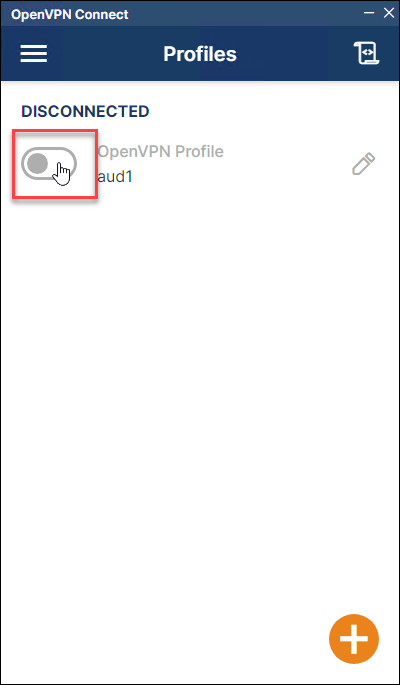
Click on the Connect toggle to complete the connection to the VPN.
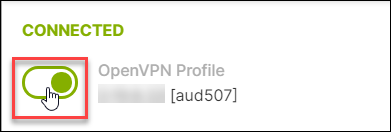
The toggle should turn green and the label should change from DISCONNECTED to CONNECTED to indicate that the connection was successful.
If you experience errors or the VPN fails to connect, let your instructor know about the issue to help you troubleshoot.
Finally, open Windows Terminal on the Windows VM and test your connection by pinging the domain controller:
ping windc.lab.local
Sample Results
PS > ping ubuntu

Pinging windc.lab.local [10.55.7.100] with 32 bytes of data:
Reply from 10.55.7.100: bytes=32 time=37ms TTL=127
Reply from 10.55.7.100: bytes=32 time=34ms TTL=127
Reply from 10.55.7.100: bytes=32 time=41ms TTL=127
Reply from 10.55.7.100: bytes=32 time=36ms TTL=127

Ping statistics for 10.55.7.100:
    Packets: Sent = 4, Received = 4, Lost = 0 (0% loss),
Approximate round trip times in milli-seconds:
    Minimum = 34ms, Maximum = 41ms, Average = 37ms
Again, if you experience errors or the VPN fails to connect, let your instructor, TA, or online SME know about the issue to help you troubleshoot.
Close Windows Terminal because you will be working from an elevated privilege shell in the next section.
Part 2: Local Users and Groups
Preparation: Launch an Administrator PowerShell Core terminal on the Windows VM by double-clicking the "WT-Admin" icon on the desktop.

Environment Check
Before proceeding, ensure that you are working in an Administrator Windows Terminal in PowerShell Core.

Background: Even on domain-joined systems, you will often find issues with local users being given too much local privilege. On most Windows system audits, you will need to query local users and groups to ensure that least privilege is being considered.
Instructions: Determine which users are in the local administrators group on your Windows VM using PowerShell:
Get-LocalGroupMember -Group "administrators"
Sample Results
PS > Get-LocalGroupMember -Group "administrators"

ObjectClass Name                PrincipalSource
----------- ----                ---------------
User        Windows-99\rciadmin Local
User        Windows-99\student  Local
For class, we have made the student user a local administrator to make the labs work more easily. In an enterprise, your IT staff may do the same thing: make users local administrators so that they won't receive so many user support calls. This is an obvious violation of the principle of least privilege and should be noted in your audit report.
Another check you will often do on Windows system audits is to enumerate the users with various local privileges. This is unfortunately not easy to query with native tools, but we have provided a third-party PowerShell module to help accomplish the task. The module works by querying the Local Security Authority Server Service (LSASS) to retrieve or even set privileges assigned to users and groups.
Import the module and then view the commands it provides.
Import-Module C:\LabFiles\scripts\UserRights.psm1
Get-Command -Module UserRights
Sample Results
PS > Import-Module C:\LabFiles\scripts\UserRights.psm1
PS > Get-Command -Module UserRights

CommandType     Name                                               Version    Source
-----------     ----                                               -------    ------
Function        Get-AccountsWithUserRight                          0.0        UserRights
Function        Get-UserRightsGrantedToAccount                     0.0        UserRights
Function        Grant-TokenPrivilege                               0.0        UserRights
Function        Grant-UserRight                                    0.0        UserRights
Function        Revoke-TokenPrivilege                              0.0        UserRights
Function        Revoke-UserRight                                   0.0        UserRights
The Get-* functions are the ones that are safe for an auditor to use. One of the privileges we are often concerned with is the Debug Programs privilege. this privilege allows the user to read all memory addresses on the system and can be leveraged by attack tools like Mimikatz, which can steal encrypted credentials from memory.
To see who has been granted this privilege, you can use the Get-AccountsWithUserRight function provided by the module. Start by getting help for that command:
Get-Help Get-AccountsWithUserRight
Sample Results
PS > Get-Help Get-AccountsWithUserRight

NAME
    Get-AccountsWithUserRight

SYNOPSIS
    Gets all accounts that are assigned a specified privilege


SYNTAX
    Get-AccountsWithUserRight [-Right] {SeTrustedCredManAccessPrivilege | SeNetworkLogonRight | SeTcbPrivilege |
    SeMachineAccountPrivilege | SeIncreaseQuotaPrivilege | SeInteractiveLogonRight | SeRemoteInteractiveLogonRight |
    SeBackupPrivilege | SeChangeNotifyPrivilege | SeSystemtimePrivilege | SeTimeZonePrivilege |
    SeCreatePagefilePrivilege | SeCreateTokenPrivilege | SeCreateGlobalPrivilege | SeCreatePermanentPrivilege |
    SeCreateSymbolicLinkPrivilege | SeDebugPrivilege | SeDenyNetworkLogonRight | SeDenyBatchLogonRight |
    SeDenyServiceLogonRight | SeDenyInteractiveLogonRight | SeDenyRemoteInteractiveLogonRight |
    SeEnableDelegationPrivilege | SeRemoteShutdownPrivilege | SeAuditPrivilege | SeImpersonatePrivilege |
    SeIncreaseWorkingSetPrivilege | SeIncreaseBasePriorityPrivilege | SeLoadDriverPrivilege | SeLockMemoryPrivilege |
    SeBatchLogonRight | SeServiceLogonRight | SeSecurityPrivilege | SeRelabelPrivilege | SeSystemEnvironmentPrivilege
    | SeDelegateSessionUserImpersonatePrivilege | SeManageVolumePrivilege | SeProfileSingleProcessPrivilege |
    SeSystemProfilePrivilege | SeUnsolicitedInputPrivilege | SeUndockPrivilege | SeAssignPrimaryTokenPrivilege |
    SeRestorePrivilege | SeShutdownPrivilege | SeSyncAgentPrivilege | SeTakeOwnershipPrivilege} [-Computer <String>]
    [-SidForUnresolvedName] [<CommonParameters>]
...
[Results Truncated]
The privilege you want to query for is called SeDebugPrivilege. Using the syntax given in the help file, query to see who has this right on the system.
Get-AccountsWithUserRight -Right SeDebugPrivilege
Sample Results
PS > Get-AccountsWithUserRight -Right SeDebugPrivilege

           Right SID          Account
           ----- ---          -------
SeDebugPrivilege S-1-5-32-544 BUILTIN\Administrators
The privilege is granted to the local administrators group. This is not appropriate for most systems unless there is a business need for them to have the right. If there is no documented need, then your audit report should include this as a finding.
Note that a severe limitation of this module is that it does not recurse from groups to nested groups or users in its results. For example, you know from your testing above that the student user is in the local administrators group, yet if you query the rights assigned to student, you may be surprised by the (empty) results. Make sure you know the limitations of your tools and adjust your testing accordingly!
Get-UserRightsGrantedToAccount -Account student
Only by querying the right assigned to the administrators group will you be able to see the privileges being granted to student.
Get-UserRightsGrantedToAccount -Account Administrators
Sample Results
PS > Get-UserRightsGrantedToAccount -Account student
PS > Get-UserRightsGrantedToAccount -Account Administrators

Account                                            Right
-------                                            -----
Administrators                       SeSecurityPrivilege
Administrators                         SeBackupPrivilege
Administrators                        SeRestorePrivilege
Administrators                     SeSystemtimePrivilege
Administrators                       SeShutdownPrivilege
Administrators                 SeRemoteShutdownPrivilege
Administrators                  SeTakeOwnershipPrivilege
Administrators                          SeDebugPrivilege
Administrators              SeSystemEnvironmentPrivilege
Administrators                  SeSystemProfilePrivilege
Administrators           SeProfileSingleProcessPrivilege
Administrators           SeIncreaseBasePriorityPrivilege
Administrators                     SeLoadDriverPrivilege
Administrators                 SeCreatePagefilePrivilege
Administrators                  SeIncreaseQuotaPrivilege
Administrators                         SeUndockPrivilege
Administrators                   SeManageVolumePrivilege
Administrators                    SeImpersonatePrivilege
Administrators                   SeCreateGlobalPrivilege
Administrators                       SeTimeZonePrivilege
Administrators             SeCreateSymbolicLinkPrivilege
Administrators                   SeChangeNotifyPrivilege
Administrators SeDelegateSessionUserImpersonatePrivilege
Administrators                   SeInteractiveLogonRight
Administrators                       SeNetworkLogonRight
Administrators                         SeBatchLogonRight
Administrators             SeRemoteInteractiveLogonRight
Part 3: File and Share Permissions
Environment Check
Before proceeding, ensure that you are working in an Administrator Windows Terminal in PowerShell Core.
Background: In this section of the lab, you will use PowerShell commands to view and analyze the access control lists for various Windows objects. These will include files and folders, shares, and registry keys.
Instructions: Begin by using the Get-ACL command to view the permissions set on the root directory of the Windows VM's C: drive:
Get-Acl C:\
Sample Results
PS > Get-Acl C:\

    Directory:

Path Owner                       Access
---- -----                       ------
C:\  NT SERVICE\TrustedInstaller NT AUTHORITY\Authenticated Users Allow  AppendData…
You will probably notice that the output is not very useful in its default format. To view all of the properties returned by Get-Acl, run this command and take some time to examine the output for fields that might be useful to query:
Get-Acl C:\ | Get-Member -Type Properties
Sample Results
PS > Get-Acl C:\ | Get-Member -Type Properties

   TypeName: System.Security.AccessControl.DirectorySecurity

Name                    MemberType     Definition
----                    ----------     ----------
Access                  CodeProperty   System.Security.AccessControl.AuthorizationRuleCollection Access{get=GetAccess;}
CentralAccessPolicyId   CodeProperty   System.Security.Principal.SecurityIdentifier CentralAccessPolicyId{get=GetCentr…
Group                   CodeProperty   System.String Group{get=GetGroup;}
Owner                   CodeProperty   System.String Owner{get=GetOwner;}
Path                    CodeProperty   System.String Path{get=GetPath;}
Sddl                    CodeProperty   System.String Sddl{get=GetSddl;}
PSChildName             NoteProperty   string PSChildName=C:\
PSDrive                 NoteProperty   PSDriveInfo PSDrive=C
PSParentPath            NoteProperty   string PSParentPath=
PSPath                  NoteProperty   string PSPath=Microsoft.PowerShell.Core\FileSystem::C:\
PSProvider              NoteProperty   ProviderInfo PSProvider=Microsoft.PowerShell.Core\FileSystem
AccessRightType         Property       type AccessRightType {get;}
AccessRuleType          Property       type AccessRuleType {get;}
AreAccessRulesCanonical Property       bool AreAccessRulesCanonical {get;}
AreAccessRulesProtected Property       bool AreAccessRulesProtected {get;}
AreAuditRulesCanonical  Property       bool AreAuditRulesCanonical {get;}
AreAuditRulesProtected  Property       bool AreAuditRulesProtected {get;}
AuditRuleType           Property       type AuditRuleType {get;}
AccessToString          ScriptProperty System.Object AccessToString {get=$toString = "";…
AuditToString           ScriptProperty System.Object AuditToString {get=$toString = "";…
There are two properties that seem interesting: Owner and AccessToString. Try running this command to retrieve a simple report of the access control list entries on the c:\windows folder, using the AccessToString property. This property makes a readable list out of the PowerShell array of access control entries for the object being examined:
Get-Acl c:\windows | Format-List -Property PSChildName, Owner, AccessToString
Sample Results
PS > Get-Acl c:\windows | Format-List -Property PSChildName, Owner, AccessToString

PSChildName    : Windows
Owner          : NT SERVICE\TrustedInstaller
AccessToString : CREATOR OWNER Allow  268435456
                 NT AUTHORITY\SYSTEM Allow  268435456
                 NT AUTHORITY\SYSTEM Allow  Modify, Synchronize
                 BUILTIN\Administrators Allow  268435456
                 BUILTIN\Administrators Allow  Modify, Synchronize
                 BUILTIN\Users Allow  -1610612736
                 BUILTIN\Users Allow  ReadAndExecute, Synchronize
                 NT SERVICE\TrustedInstaller Allow  268435456
                 NT SERVICE\TrustedInstaller Allow  FullControl
                 APPLICATION PACKAGE AUTHORITY\ALL APPLICATION PACKAGES Allow  ReadAndExecute, Synchronize
                 APPLICATION PACKAGE AUTHORITY\ALL APPLICATION PACKAGES Allow  -1610612736
                 APPLICATION PACKAGE AUTHORITY\ALL RESTRICTED APPLICATION PACKAGES Allow  ReadAndExecute, Synchronize
                 APPLICATION PACKAGE AUTHORITY\ALL RESTRICTED APPLICATION PACKAGES Allow  -1610612736
While this gives a nice list of access control entries for the folder, it also raises a new question: what do those numbers in the entries mean? It turns out that, much like the UserAccessControl field in Active Directory, Microsoft decided to use the bits of an integer to represent "generic access right" for files. The integer 268435456, which occurs in many of the access entries, is the "generic all" permission - effectively full control. The -1610612736 value represents a read, execute, and synchronize permission.
Similar permissions exist on registry keys. In PowerShell, the registry can be navigated like a filesystem, and permissions on registry keys can be queried like those on files or folders. Begin by changing your location to the HKLM:\Software registry key. Note how your PowerShell prompt changes when you change locations:
Set-Location HKLM:\SOFTWARE
Get-Acl HKLM:\SOFTWARE\ |
  Format-List -Property PSChildName, Owner, AccessToString
Sample Results
PS > Set-Location HKLM:\SOFTWARE
PS > Get-Acl HKLM:\SOFTWARE\ |
>>   Format-List -Property PSChildName, Owner, AccessToString

PSChildName    : SOFTWARE
Owner          : BUILTIN\Administrators
AccessToString : CREATOR OWNER Allow  FullControl
                 NT AUTHORITY\SYSTEM Allow  FullControl
                 BUILTIN\Administrators Allow  FullControl
                 BUILTIN\Users Allow  ReadKey
                 APPLICATION PACKAGE AUTHORITY\ALL APPLICATION PACKAGES Allow  ReadKey
                 S-1-15-3-1024-1065365936-1281604716-3511738428-1654721687-432734479-3232135806-4053264122-3456934681
                 Allow  ReadKey
On your own, feel free to explore the registry, navigating it like a filesystem, using commands like Get-Location, Set-Location, Change-Location, Get-ChildItem, and so on. When you have finished, change your location back to the root of the C: drive on the Windows VM:
Set-Location c:\
Checking for the existence of file shares and examining the associated permissions will be a part of many Windows audits. Remember from the lecture that the Get-FileShare cmdlet will return a list of shares associated with disks or filesystems. To view the file shares which exist on your Windows VM, use this command:
Get-FileShare
Sample Results
PS > Get-FileShare

Name   HealthStatus OperationalStatus
----   ------------ -----------------
ADMIN$ Healthy      Online
C$     Healthy      Online
Note that there is a related command which will list all shares on the system, including non-file-shares, such as the IPC$ share created for inter-process communications. The command to list all Windows shares is Get-SMBShare. Run the Get-SMBShare command on your Windows VM, and compare the results. Note that this time, you see the IPC$ share, which is NOT associated with any filesystems.
Get-SMBShare
Sample Results
PS > Get-SMBShare

Name   ScopeName Path       Description
----   --------- ----       -----------
ADMIN$ *         C:\Windows Remote Admin
C$     *         C:\        Default share
IPC$   *                    Remote IPC
Part 4: Windows Logging
Environment Check
Before proceeding, ensure that you are working in an Administrator Windows Terminal in PowerShell Core.
Background: It is often helpful to examine the audit logs and their settings when conducting a review of a Windows system. In this section of the lab, you will use PowerShell to examine the windows audit logs.
Instructions: Begin by getting a list of the event logs on your Windows VM:
Get-WinEvent -ListLog *
Sample Results
PS > Get-WinEvent -ListLog *

LogMode   MaximumSizeInBytes RecordCount LogName
-------   ------------------ ----------- -------
Circular            15728640        2393 Windows PowerShell
Circular            20971520        2610 System
Circular            20971520       27452 Security
Circular            20971520           0 Key Management Service
Circular             1052672           0 Internet Explorer
Circular            20971520           0 HardwareEvents
Circular            20971520        3528 Application
...
[Results Truncated]
This gives a nice summary of the logs in use, their sizes, rotation methods, and the number of entries in each. Get-WinEvent can retrieve the events from a log when you specify the logName parameter.
Run this command to see the properties returned when you query the entries in one of the PowerShell logs:
Get-WinEvent -logname Microsoft-Windows-PowerShell/Operational |
  Get-Member
Sample Results
PS > Get-WinEvent -logname Microsoft-Windows-PowerShell/Operational |
>>   Get-Member

   TypeName: System.Diagnostics.Eventing.Reader.EventLogRecord

Name                 MemberType   Definition
----                 ----------   ----------
Dispose              Method       void Dispose(), void IDisposable.Dispose()
Equals               Method       bool Equals(System.Object obj)
FormatDescription    Method       string FormatDescription(), string FormatDescription(System.Collections.Generic.IEnu…
GetHashCode          Method       int GetHashCode()
GetPropertyValues    Method       System.Collections.Generic.IList[System.Object] GetPropertyValues(System.Diagnostics…
GetType              Method       type GetType()
ToString             Method       string ToString()
ToXml                Method       string ToXml()
Message              NoteProperty string Message=PowerShell console is ready for user input
ActivityId           Property     System.Nullable[guid] ActivityId {get;}
Bookmark             Property     System.Diagnostics.Eventing.Reader.EventBookmark Bookmark {get;}
ContainerLog         Property     string ContainerLog {get;}
Id                   Property     int Id {get;}
Keywords             Property     System.Nullable[long] Keywords {get;}
KeywordsDisplayNames Property     System.Collections.Generic.IEnumerable[string] KeywordsDisplayNames {get;}
Level                Property     System.Nullable[byte] Level {get;}
LevelDisplayName     Property     string LevelDisplayName {get;}
LogName              Property     string LogName {get;}
...
[Results Truncated]
To query for a specific type of event, you can use Where-object to specify things like which event log, event ID, machine name, and dates you are interested in. This example would retrieve all logon events (id #4624) from the security log on the local computer, within the last day, and will return only the five most recent:
Get-WinEvent -LogName security |
  Where-Object {($_.Id -eq 4624) -and ($_.TimeCreated -gt (get-Date).AddDays(-1))} |
  Select-Object TimeCreated, Id, Message -First 5 |
  Format-List *
Sample Results
PS > Get-WinEvent -LogName security |
>>   Where-Object {($_.Id -eq 4624) -and ($_.TimeCreated -gt (get-Date).AddDays(-1))} |
>>   Select-Object TimeCreated, Id, Message -First 5 |
>>   Format-List *

TimeCreated : 4/10/2024 12:22:01 AM
Id          : 4624
Message     : An account was successfully logged on.

              Subject:
                Security ID:            S-1-5-18
                Account Name:           Windows$
                Account Domain:         WORKGROUP
                Logon ID:               0x3E7

              Logon Information:
                Logon Type:             5
                Restricted Admin Mode:  -
                Virtual Account:                No
                Elevated Token:         Yes

              Impersonation Level:              Impersonation

              New Logon:
                Security ID:            S-1-5-18
                Account Name:           SYSTEM
                Account Domain:         NT AUTHORITY
                Logon ID:               0x3E7
...
[Results Truncated]
Part 5: Windows Domain Measurements
Environment Check
Before proceeding, ensure that you are working in an Administrator Windows Terminal in PowerShell Core.
Background: Measurements against Active Directory are an important part of many audits. In this section of the lab, you will use a number of PowerShell commands to query Active Directory.
Instructions: Begin by establishing a set of credentials to pass to the domain controller. Since you are not a member of the domain, you will have to specify a server and credentials to use for each query. If you were on your own domain, this would not be necessary.
Manual Active Directory Testing
Use these commands to establish credentials and then retrieve a list of all users in the domain. Note that the filter in this example is a PowerShell filter, not an LDAP filter. When prompted for a password, enter Password1.
$cred = Get-Credential -UserName student
Password1
Sample Results
PS > $cred = Get-Credential -UserName student

PowerShell credential request
Enter your credentials.
Password for user student: *********
Get-ADUser -Filter * -Server windc -Credential $cred
Sample Results
Get-ADUser -Filter * -Server windc -Credential $cred

DistinguishedName : CN=Administrator,CN=Users,DC=AUD1,DC=local
Enabled           : True
GivenName         :
Name              : Administrator
ObjectClass       : user
ObjectGUID        : 5eecfdbc-db38-451e-ba77-a767c1252f2c
SamAccountName    : Administrator
SID               : S-1-5-21-2648094342-711214242-3780855676-500
Surname           :
UserPrincipalName :

DistinguishedName : CN=Guest,CN=Users,DC=AUD1,DC=local
Enabled           : False
GivenName         :
Name              : Guest
ObjectClass       : user
ObjectGUID        : 93d088c4-2fa9-4e3f-b500-02dba280e5d1
SamAccountName    : Guest
SID               : S-1-5-21-2648094342-711214242-3780855676-501
Surname           :
UserPrincipalName :
...
[Results Truncated]
Active Directory implements the lightweight directory access protocol (LDAP), which means that you can use LDAP's query language to filter your searches. Use this command to query for all users with an LDAP filter. Note the prefix notation used for the & operator to find AD objects, which have a class of User and a category of Person.
Get-ADUser -LDAPFilter "(&(ObjectClass=User)(ObjectCategory=Person))" `
  -Server windc -Credential $cred
Sample Results
PS > Get-ADUser -LDAPFilter "(&(ObjectClass=User)(ObjectCategory=Person))" `
>>   -Server windc -Credential $cred

DistinguishedName : CN=Administrator,CN=Users,DC=AUD1,DC=local
Enabled           : True
GivenName         :
Name              : Administrator
ObjectClass       : user
ObjectGUID        : 5eecfdbc-db38-451e-ba77-a767c1252f2c
SamAccountName    : Administrator
SID               : S-1-5-21-2648094342-711214242-3780855676-500
Surname           :
UserPrincipalName :

DistinguishedName : CN=Guest,CN=Users,DC=AUD1,DC=local
Enabled           : False
GivenName         :
Name              : Guest
ObjectClass       : user
ObjectGUID        : 93d088c4-2fa9-4e3f-b500-02dba280e5d1
SamAccountName    : Guest
SID               : S-1-5-21-2648094342-711214242-3780855676-501
Surname           :
UserPrincipalName :
...
[Results Truncated]
The PowerShell filters allow for a lot of flexibility, and, in some cases, have syntax that removes the need for complicated LDAP filters. You'll try a few of them here. First, get a list of users who have at least one previous logon but have not logged in during the last 10 seconds. On a real audit against a real domain, looking for "stale users," you would look back for a number of days instead of seconds. In our lab, we have very few logon events, so we'll shorten the time frame to get some results:
$10Sec = (Get-Date).AddSeconds(-10)
Get-ADUser -Filter {LastLogonDate -le $10Sec} `
  -Server windc  -Credential $cred
Sample Results
PS > $10Sec = (Get-Date).AddSeconds(-10)
PS > Get-ADUser -Filter {LastLogonDate -le $10Sec} `
>>   -Server windc  -Credential $cred

DistinguishedName : CN=Student Auditor,OU=Guest Auditors,OU=Audit and Security,DC=AUD1,DC=local
Enabled           : True
GivenName         :
Name              : Student Auditor
ObjectClass       : user
ObjectGUID        : cd35e53d-c595-4c7a-9204-08dfd5bd2688
SamAccountName    : student
SID               : S-1-5-21-2648094342-711214242-3780855676-2105
Surname           :
UserPrincipalName :
Many of the queries that required binary math on the UserAccountControl attribute in older tools are often much easier to perform with Get-ADUser. Take these examples, which find users with no password required and no password expiration date. Think about whether the results that you see would indicate potential audit findings on a real audit.
Get-ADUser -Filter {PasswordNotRequired -eq $true} `
  -Server windc -Credential $cred
Sample Results
PS > Get-ADUser -Filter {PasswordNotRequired -eq $true} `
>>   -Server windc -Credential $cred

DistinguishedName : CN=Guest,CN=Users,DC=AUD1,DC=local
Enabled           : False
GivenName         :
Name              : Guest
ObjectClass       : user
ObjectGUID        : 93d088c4-2fa9-4e3f-b500-02dba280e5d1
SamAccountName    : Guest
SID               : S-1-5-21-2648094342-711214242-3780855676-501
Surname           :
UserPrincipalName :

DistinguishedName : CN=Skippie Torald,OU=Security Engineers,OU=Audit and Security,DC=AUD1,DC=local
Enabled           : True
GivenName         :
Name              : Skippie Torald
ObjectClass       : user
ObjectGUID        : 18ec57ba-f9e8-44ff-88aa-d18162a551bb
SamAccountName    : STorald
SID               : S-1-5-21-2648094342-711214242-3780855676-1311
Surname           :
UserPrincipalName :
Get-ADUser -Filter {PasswordNeverExpires -eq $true} `
  -Server windc -Credential $cred
Sample Results
PS > Get-ADUser -Filter {PasswordNeverExpires -eq $true} `
>>   -Server windc -Credential $cred

DistinguishedName : CN=Guest,CN=Users,DC=AUD1,DC=local
Enabled           : False
GivenName         :
Name              : Guest
ObjectClass       : user
ObjectGUID        : 93d088c4-2fa9-4e3f-b500-02dba280e5d1
SamAccountName    : Guest
SID               : S-1-5-21-2648094342-711214242-3780855676-501
Surname           :
UserPrincipalName :

DistinguishedName : CN=Lucilia Mell,OU=Server Admins,OU=Information Technology,DC=AUD1,DC=local
Enabled           : True
GivenName         :
Name              : Lucilia Mell
ObjectClass       : user
ObjectGUID        : b3dd23fd-f45b-4fad-8fe2-351b7743731c
SamAccountName    : LMell
SID               : S-1-5-21-2648094342-711214242-3780855676-1807
Surname           :
UserPrincipalName :
...
[Results Truncated]
PowerShell queries for domain group membership use the Get-ADGroupMember command. The -Recursive flag allows the query to show users who are part of nested groups, much like the "-expand" option in the older DSGet tool. View the members of the Domain Admins group using the command below. Think about whether the number and membership of domain administrators seems about right for an organization of around 1,000 users.
Get-ADGroupMember -Identity "Domain Admins" `
  -Server windc -Credential $cred
Sample Results
PS > Get-ADGroupMember -Identity "Domain Admins" `
>>   -Server windc -Credential $cred

distinguishedName : CN=Administrator,CN=Users,DC=AUD1,DC=local
name              : Administrator
objectClass       : user
objectGUID        : 5eecfdbc-db38-451e-ba77-a767c1252f2c
SamAccountName    : Administrator
SID               : S-1-5-21-2648094342-711214242-3780855676-500

distinguishedName : CN=Allyn Badcock,OU=Server Admins,OU=Information Technology,DC=AUD1,DC=local
name              : Allyn Badcock
objectClass       : user
objectGUID        : 1a732805-39a8-40af-acc0-565cafe53663
SamAccountName    : ABadcock
SID               : S-1-5-21-2648094342-711214242-3780855676-1921
...
[Results Truncated]
The command above does not recurse through nested groups, so it doesn't really give a full picture of the number of domain administrators. Try again using the -Recursive flag. Again, consider whether the results seem reasonable.
Get-ADGroupMember -Identity "Domain Admins" `
  -Server windc -Credential $cred -Recursive
Sample Results
PS > Get-ADGroupMember -Identity "Domain Admins" `
>>   -Server windc -Credential $cred -Recursive

distinguishedName : CN=Administrator,CN=Users,DC=AUD1,DC=local
name              : Administrator
objectClass       : user
objectGUID        : 5eecfdbc-db38-451e-ba77-a767c1252f2c
SamAccountName    : Administrator
SID               : S-1-5-21-2648094342-711214242-3780855676-500

distinguishedName : CN=Allyn Badcock,OU=Server Admins,OU=Information Technology,DC=AUD1,DC=local
name              : Allyn Badcock
objectClass       : user
objectGUID        : 1a732805-39a8-40af-acc0-565cafe53663
SamAccountName    : ABadcock
SID               : S-1-5-21-2648094342-711214242-3780855676-1921
...
[Results Truncated]
You will commonly collect the results of queries into CSV files either for your own later analysis or to give to the client with the report. Use this command to save a full list of domain administrators into a CSV for later use:
Get-ADGroupMember -Identity "Domain Admins" `
  -Server windc -Credential $cred -Recursive |
  Select-Object Name,SamAccountName |
  Export-CSV "DomainAdmins.csv"
To view the contents of the file, run this command:
Get-Content DomainAdmins.csv
Sample Results
PS > Get-ADGroupMember -Identity "Domain Admins" `
>>   -Server windc -Credential $cred -Recursive |
>>   Select-Object Name,SamAccountName |
>>   Export-CSV "DomainAdmins.csv"

PS > Get-Content DomainAdmins.csv
"Name","SamAccountName"
"Administrator","Administrator"
"Allyn Badcock","ABadcock"
"Student Auditor","student"
"Craggy Floyde","CFloyde"
"Hadley Waterworth","HWaterworth"
"Allsun Perigo","APerigo"
"Sonnie Stonebridge","SStonebridge"
"Yorke Lemanu","YLemanu"
"Adelina Bassilashvili","ABassilashvili"
"Waverley Grabb","WGrabb"
"Genny Cartmer","GCartmer"
...
[Results Truncated]
So far, you have queried groups to see what users are members. To view the groups to which a user belongs, you can use the unfortunately named Get-ADPrincipalGroupMembership command. Run this command to see the groups to which the student user belongs:
Get-ADPrincipalGroupMembership -Identity "student" `
  -Server windc -Credential $cred
Sample Results
PS > Get-ADPrincipalGroupMembership -Identity "student" `
>>   -Server windc -Credential $cred

distinguishedName : CN=Domain Users,CN=Users,DC=AUD1,DC=local
GroupCategory     : Security
GroupScope        : Global
name              : Domain Users
objectClass       : group
objectGUID        : f35ad02f-885b-4e9b-ac4f-ee47ff5df986
SamAccountName    : Domain Users
SID               : S-1-5-21-2648094342-711214242-3780855676-513

distinguishedName : CN=Domain Admins,CN=Users,DC=AUD1,DC=local
GroupCategory     : Security
GroupScope        : Global
name              : Domain Admins
objectClass       : group
objectGUID        : 56d59444-2fad-4b96-93a0-60c1a7b83079
SamAccountName    : Domain Admins
SID               : S-1-5-21-2648094342-711214242-3780855676-512
We normally would not expect to see the auditor's account provisioned as a domain administrator! Like many administrative teams, we made the decision to add the auditor to this group so "everything will work" for them. Feel free to include a recommendation in your report if this seems inappropriate!
Unfortunately, the Get-ADPrincipalGroupMembership command does not expand the group membership the way that the older DSGet tool does. Your options are to write a small script to recursively list the groups or simply use DSGet for that function. We remind you again that knowing how to use all the tools available to the auditor can make you much more efficient and effective.
To use DSGet, you will need to know the distinguished name (DN) of the auditor user. You can discover the DN simply by running Get-ADUser with the username you are interested in as the Identity parameter. The entire string highlighted in the screenshot below is the DN.
Get-ADUser -Identity student -Server windc -Credential $cred
Sample Results
PS > Get-ADUser -Identity student -Server windc -Credential $cred

DistinguishedName : CN=Student Auditor,OU=Guest Auditors,OU=Audit and Security,DC=AUD1,DC=local
Enabled           : True
GivenName         :
Name              : Student Auditor
ObjectClass       : user
ObjectGUID        : cd35e53d-c595-4c7a-9204-08dfd5bd2688
SamAccountName    : student
SID               : S-1-5-21-2648094342-711214242-3780855676-2105
Surname           :
UserPrincipalName :
To avoid typing errors, we usually capture the DN of the user we are testing to a variable and then pass that variable in the DSGet command line. Run this command and note the difference in the lists returned by DSGet and Get-ADPrincipalGroupMembership.
$userDN = (Get-ADUser -Identity student `
  -Server windc -Credential $cred).DistinguishedName
dsget user "$userDN" -memberof -expand -s windc -u student -p Password1
Sample Results
PS > $userDN = (Get-ADUser -Identity student `
>>   -Server windc -Credential $cred).DistinguishedName
PS > dsget user "$userDN" -memberof -expand -s windc -u student -p Password1

"CN=Domain Admins,CN=Users,DC=AUD1,DC=local"
"CN=Domain Users,CN=Users,DC=AUD1,DC=local"
"CN=Denied RODC Password Replication Group,CN=Users,DC=AUD1,DC=local"
"CN=Schema Admins,CN=Users,DC=AUD1,DC=local"
"CN=Administrators,CN=Builtin,DC=AUD1,DC=local"
"CN=Users,CN=Builtin,DC=AUD1,DC=local"
Scripted Active Directory Testing
There are several measurements you will find yourself routinely taking in Active Directory environments, which makes these measurements perfect for taking with a script! In the author's audit practice, we have standard scripts that we run for data gathering. We have included a simple example in the lab files repository.
The ADAuditGeneric.ps1 script will gather basic demographic information about the AD. Then it will check for common user account misconfigurations and indicators of "orphaned" user accounts. Change to the lab scripts directory, and run the script with these commands:
Set-Location C:\LabFiles\scripts\
.\ADAuditGeneric.ps1 -Server windc -Credential $cred
Sample Results
PS > Set-Location C:\LabFiles\scripts\
PS > .\ADAuditGeneric.ps1 -Server windc -Credential $cred

NetBIOSName          : AUD1
DNSRoot              : aud1.local
Forest               : aud1.local
ADFunctionalLevel    : Windows2016Domain
EnabledUsers         : 995
DisabledUsers        : 11
TotalUsers           : 1006
StalePasswordUsers   : 0
InactiveUsers        : 994
ActiveUsers          : 995
DomainAdmins         : 71
SchemaAdmins         : 71
EnterpriseAdmins     : 1
PasswordNeverExpires : 8
PasswordNeverSet     : 0
PasswordNotRequired  : 1
Live Data in Use!
Remember that your data may differ from these results!
Note that the script has saved several CSV files with the results of many of the queries it has run. On your own, you can view the CSV files in the console with the Get-Content cmdlet or open them in OpenOffice if you would like.
Get-ChildItem *.csv
Sample Results
PS > Get-ChildItem *.csv

    Directory: C:\LabFiles\scripts

Mode                 LastWriteTime         Length Name
----                 -------------         ------ ----
-a---           4/10/2024 12:44 AM           2417 DisabledUsers.csv
-a---           4/10/2024 12:44 AM          14683 DomainAdmins.csv
-a---           4/10/2024 12:44 AM            251 EnterpriseAdmins.csv
-a---           4/10/2024 12:44 AM         254104 InactiveUsers.csv
-a---           4/10/2024 12:44 AM           1830 NonExpiringPwdUsers.csv
-a---           4/10/2024 12:44 AM          14683 SchemaAdmins.csv
-a---           4/10/2024 12:44 AM         254152 StalePasswordUsers.csv
When you have finished, close the administrative terminal session you have open.
Disconnect OpenVPN Client
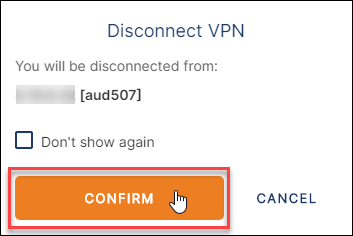
When you have finished with the lab, you can disconnect the VPN by toggling the CONNECTED slider in the OpenVPN Connect application.
Click the Confirm button to continue disconnecting.