Lab 2.2: Windows System Measurements
VMs Needed
- Windows
- Ubuntu
Lab Video
Objectives
- Gather "demographic" information about Windows operating systems and patch levels.
- Query the Windows registry.
- Profile installed services, network ports, and installed software.
- Explore the use of osquery for data gathering.
Lab Preparation
Open a PowerShell Core session in Windows Terminal on the Windows VM.
Part 1: OS and Patching Information
Environment Check
Before proceeding, ensure that you are working in Windows Terminal in PowerShell Core.

Background: Part of auditing a Windows host is understanding the type and patch level of the installed operating system. In this section, you will obtain information about the operating system installed on the Windows VM.
Instructions: In your PowerShell session, run this command to obtain details about the OS:
Get-CimInstance Win32_OperatingSystem
Sample Results
PS > Get-CimInstance Win32_OperatingSystem

SystemDirectory     Organization BuildNumber RegisteredUser SerialNumber            Version
---------------     ------------ ----------- -------------- ------------            -------
C:\Windows\system32              26100                      00491-50000-00001-AA686 10.0.26100
Your audit should include checks to see that only supported operating systems and software are being used in the enterprise. Take a moment to do a web search to try to determine when the end of support will be for this version of Windows 2025. One resource that may help is https://learn.microsoft.com/en-us/lifecycle/products/windows-server-2025.
https://learn.microsoft.com/en-us/lifecycle/products/windows-server-2025
Remember form the lecture that, in addition to the build number, you should be checking the "UBR," or update build revision, to see how recently the OS was patched. Retrieve the UBR using this command:
Get-ComputerInfo | Format-Table OsName, OsBuildNumber, WindowsUBR
Check the table for Windows Server 2025 (OS Build 26100) on the Microsoft Server Release History webpage and find the availability date for the build/UBR on the Windows VM. Windows Server release information
https://learn.microsoft.com/en-us/windows/release-health/windows-server-release-info
Notice that new UBRs are released on most patch Tuesdays and sometime more often than that. Determine a rough age for this machine's OS build and consider whether it seems that the OS is being patched regularly.
Patches
The next thing that you will want to review is whether the Windows host is well-patched. The Get-Hotfix cmdlet yields information about the Microsoft patches that have been installed, either manually or with your enterprise patching solution.
Run this command to see the installed hotfixes:
Get-Hotfix
Sample Results
PS > Get-Hotfix

Source        Description      HotFixID      InstalledBy          InstalledOn
------        -----------      --------      -----------          -----------
Windows-99    Update           KB5054979     NT AUTHORITY\SYSTEM  7/1/2025 12:00:00 AM
Windows-99    Security Update  KB5060842                          6/7/2025 12:00:00 AM
Windows-99    Update           KB5059502                          6/7/2025 12:00:00 AM
Live Data in Use!
Remember that your data may differ from these results!
While this allows you to see what patches are installed, it doesn't give you a good view of what patches ARE NOT installed. On our audits, we often solve that problem by querying the enterprise patch management solution or by running authenticated vulnerability scans. We can use the installed hotfix information to gain some insight into the organization's patching process.
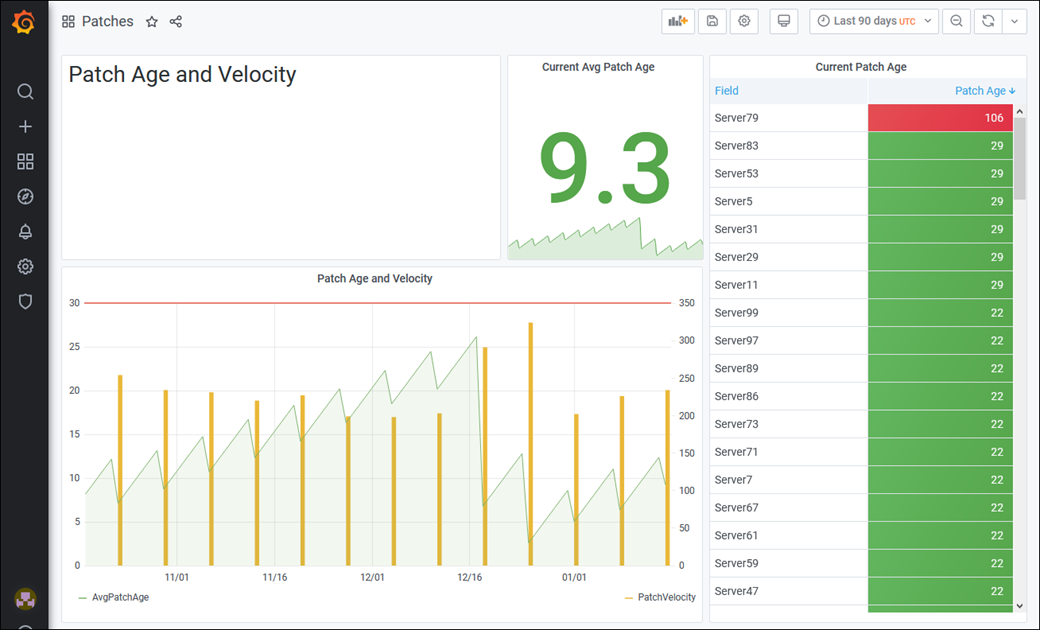
One interesting measurement is what we call "patch age." This is simply the number of days since the last patch was installed on a system. The average patch age across the enterprise can be a good indicator of whether patching has happened recently.
Gathering the patch age from a system is simply a matter of calculating the number of days since the host was last patched. Start by identifying the most recent patch installed using this command.
Get-HotFix |
  Sort-Object InstalledOn -Descending |
  Select-Object -First 1
Sample Results
PS > Get-HotFix |
>>   Sort-Object InstalledOn -Descending |
>>   Select-Object -First 1

Source        Description      HotFixID      InstalledBy          InstalledOn
------        -----------      --------      -----------          -----------
Windows-99    Update           KB5054979     NT AUTHORITY\SYSTEM  7/1/2025 12:00:00 AM
Live Data in Use!
Remember that your data may differ from these results!
Next, you can save that date in a variable and use it to create a new TimeSpan object to calculate the patch age.
$lastPatchDate = `
  (Get-HotFix |
    Sort-Object InstalledOn -Descending |
    Select-Object -First 1).InstalledOn
View the contents of the variable by invoking it in PowerShell. It should match the date of the patch you identified above.
$lastPatchDate
Sample Results
PS > $lastPatchDate = `
>>   (Get-HotFix |
>>     Sort-Object InstalledOn -Descending |
>>     Select-Object -First 1).InstalledOn
PS > $lastPatchDate

Wednesday, March 13, 20## 12:00:00 AM
Live Data in Use!
Remember that your data may differ from these results!
Finally, use the date to calculate the age:
(New-TimeSpan -Start $lastPatchDate -End (Get-Date)).TotalDays
Sample Results
PS > (New-TimeSpan -Start $lastPatchDate -End (Get-Date)).TotalDays
7.02448024543056
Live Data in Use!
Remember that your data may differ from these results!
In the screenshot, the host was last patched less than one day ago. Again, your results will vary depending on when your Windows VM last updated itself. If the organization has a policy requiring patches to be applied within 30 days of release, we would expect that the average patch age would stay under that number over time.
The second useful measurement is "patch velocity," which tells us how many patches were installed on a host each day. This measurement is easily obtained using the Group-Object cmdlet to group the patches by installation date. Patch velocity is a good indicator of administrative effort in patching the hosts. When graphed over time, the total patch velocity across all Windows hosts will show you how frequently patches are being installed.
To measure patch velocity for your Windows VM, run this command. The Count property is the number of patches installed on each date from the Name property.
Get-HotFix | Group-Object InstalledOn
Sample Results
PS > Get-HotFix | Group-Object InstalledOn

Count Name                      Group
----- ----                      -----
    2 4/9/2021 12:00:00 AM      {\\Windows\root\cimv2:Win32_QuickFixEngineering.HotFixID="KB5000…
    2 2/17/2023 12:00:00 AM     {\\Windows\root\cimv2:Win32_QuickFixEngineering.HotFixID="KB5015…
    4 11/16/2023 12:00:00 AM    {\\Windows\root\cimv2:Win32_QuickFixEngineering.HotFixID="KB5031…
    2 3/6/2024 12:00:00 AM      {\\Windows\root\cimv2:Win32_QuickFixEngineering.HotFixID="KB5034…
    2 3/13/2024 12:00:00 AM     {\\Windows\root\cimv2:Win32_QuickFixEngineering.HotFixID="KB5035…
Live Data in Use!
Remember that your data may differ from these results!
The screenshot below is from a management dashboard we developed for a compliance client to track patch age and velocity across the environment.
Imperfect but Useful Measurements!
Patch age and velocity are not perfect measures of whether a system is fully patched. An authenticated scan using a tool designed to identify missing patches would be a much better way of determining patch status. In the absence of such a tool, these numbers can help management to reduce uncertainty surrounding patching. Over time, if the patch age for your systems stays under the management-defined patching threshold, it provides some (but not perfect) assurance that patching is happening regularly. We have sometimes used patch age/velocity as a "best-effort" measurement until a more suitable tool can be implemented.
Part 2: Registry Settings
Environment Check
Before proceeding, ensure that you are working in Windows Terminal in PowerShell Core.
Background: Many security policies are implemented through registry settings, and most security benchmarks reference particular registry keys and values that should exist. Remember from the lecture that in PowerShell, the HKEY_LOCAL_MACHINE and HKEY_CURRENT_USER registry hives are accessible as PSDrive objects, which behave like a disk drive. You can query registry settings with the same tools that are used to query files in a filesystem. In this section of the lab, you will query the Windows registry to validate that the settings match the enterprise policy, benchmark, or your audit work program.
Instructions: Imagine your enterprise has decided that Windows workstations will all have these account settings:
- Blank passwords will not be allowed. The
HKEY_LOCAL_MACHINE\SYSTEM\CurrentControlSet\Control\Lsa\LimitBlankPasswordUseregistry key should be set to a value of 1. - The older LMHash format will not be used for local password hashes. The
HKEY_LOCAL_MACHINE\SYSTEM\CurrentControlSet\Control\Lsa\NoLMHashkey should be set to a value of 1. - Anonymous enumeration of accounts and shares will be disabled. The
HKEY_LOCAL_MACHINE\SYSTEM\CurrentControlSet\Control\Lsa\RestrictAnonymouskey should be set to a value of 1. - Workstations will notify the user whenever a program tries to make changes to the computer. The
HKEY_LOCAL_MACHINE\SOFTWARE\Microsoft\Windows\CurrentVersion\Policies\System\EnableLUAkey should be set to a value of 1.
You'll audit for each of these settings using the Get-ItemProperty cmdlet against the HKLM: PSDrive object.
Since the first three are all under the LSA settings, you can use a single query to obtain results for all of them:
Get-ItemProperty "HKLM:\SYSTEM\CurrentControlSet\Control\Lsa"
Sample Results
PS > Get-ItemProperty "HKLM:\SYSTEM\CurrentControlSet\Control\Lsa"

auditbasedirectories      : 0
auditbaseobjects          : 0
Bounds                    : {0, 48, 0, 0…}
crashonauditfail          : 0
fullprivilegeauditing     : {0}
LimitBlankPasswordUse     : 1
NoLmHash                  : 1
Security Packages         : {""}
Notification Packages     : {scecli}
Authentication Packages   : {msv1_0}
LsaPid                    : 768
LsaCfgFlagsDefault        : 0
SecureBoot                : 1
ProductType               : 4
disabledomaincreds        : 0
everyoneincludesanonymous : 0
forceguest                : 0
restrictanonymous         : 0
restrictanonymoussam      : 1
PSPath                    : Microsoft.PowerShell.Core\Registry::HKEY_LOCAL_MACHINE\SYSTEM\CurrentC
                            ontrolSet\Control\Lsa
PSParentPath              : Microsoft.PowerShell.Core\Registry::HKEY_LOCAL_MACHINE\SYSTEM\CurrentC
                            ontrolSet\Control
PSChildName               : Lsa
PSDrive                   : HKLM
PSProvider                : Microsoft.PowerShell.Core\Registry
Note in the screenshot that the RestrictAnonymous setting would be a control failure, since the value is 0 and not 1.
To query for a single registry setting, you can use Select-Object. Test for your fourth control using either of these commands:
Get-ItemProperty "HKLM:\SOFTWARE\Microsoft\Windows\CurrentVersion\Policies\System" |
  Select-Object EnableLUA
or
(Get-ItemProperty "HKLM:\SOFTWARE\Microsoft\Windows\CurrentVersion\Policies\System").EnableLUA
Sample Results
PS > Get-ItemProperty "HKLM:\SOFTWARE\Microsoft\Windows\CurrentVersion\Policies\System" |
>>   Select-Object EnableLUA

EnableLUA
---------
        1

PS > (Get-ItemProperty "HKLM:\SOFTWARE\Microsoft\Windows\CurrentVersion\Policies\System").EnableLUA
1
The returned value of 1 matches the control and would be considered a passing control test.
Part 3: Installed Software
Environment Check
Before proceeding, ensure that you are working in Windows Terminal in PowerShell Core.
Background: After missing OS patches, unpatched locally installed software is probably the second-leading source of vulnerabilities on Windows systems. In this section, you will use PowerShell and command-line tools to obtain information about the software installed on the Windows VM.
Instructions: One way to get a list of installed software is to use WMI to query the Microsoft Installer (MSI) for installed software. While this has the advantage of using a built-in facility, we have found it to be less than complete on our audits, since not all software is installed using MSI.
To get a list of installed software using this technique, run this command:
Get-CimInstance Win32_Product |
  Select-Object Name, Version |
  Sort-Object Name
Sample Results
PS > Get-CimInstance Win32_Product |
>>   Select-Object Name, Version |
>>   Sort-Object Name

Name                                                           Version
----                                                           -------
AWS Command Line Interface v2                                  2.27.43.0
Microsoft Azure CLI (64-bit)                                   2.74.0
Microsoft Visual C++ 2008 Redistributable - x64 9.0.30729.6161 9.0.30729.6161
Microsoft Visual C++ 2008 Redistributable - x86 9.0.30729.6161 9.0.30729.6161
Microsoft Visual C++ 2022 X64 Additional Runtime - 14.44.35208 14.44.35208
Microsoft Visual C++ 2022 X64 Minimum Runtime - 14.44.35208    14.44.35208
Microsoft Visual C++ 2022 X86 Additional Runtime - 14.44.35208 14.44.35208
Microsoft Visual C++ 2022 X86 Minimum Runtime - 14.44.35208    14.44.35208
OpenOffice 4.1.15                                              4.115.9813
OpenVPN Connect                                                3.7.2
PowerShell 7-x64                                               7.4.7.0
Python 3.13.5 Add to Path (64-bit)                             3.13.5150.0
Python 3.13.5 Core Interpreter (64-bit)                        3.13.5150.0
Python 3.13.5 Development Libraries (64-bit)                   3.13.5150.0
Python 3.13.5 Documentation (64-bit)                           3.13.5150.0
Python 3.13.5 Executables (64-bit)                             3.13.5150.0
Python 3.13.5 pip Bootstrap (64-bit)                           3.13.5150.0
...
[Results Truncated]
Review the results from the command and try to locate the Firefox browser in the list. Even though you know it is installed (you have used it in other labs), it does not appear here. That's because the administrators did not install Firefox using the normal techniques; it was installed using a package manager called "Chocolatey." The MSI system is not able to report on software it doesn't know about!
We've found more reliable techniques for identifying installed software on our audits. One is to use a PowerShell script to scan the registry for the "uninstall keys" created when most software is installed. We've included such a script in the lab files repository for the class. Run the script and review the output to see if you can identify the Firefox version we have installed.
C:\LabFiles\scripts\InstalledSoftware.ps1
Sample Results
PS > C:\LabFiles\scripts\InstalledSoftware.ps1

DisplayName                                                        DisplayVersion InstalledOn
-----------                                                        -------------- -----------
7-Zip 24.09 (x64)                                                  24.09
AWS Command Line Interface v2                                      2.27.43.0
Git                                                                2.50.0
Microsoft Azure CLI (64-bit)                                       2.74.0
Microsoft Edge                                                     138.0.3351.55
Microsoft Edge Update                                              1.3.195.61
Microsoft Edge WebView2 Runtime                                    137.0.3296.93
Microsoft Visual C++ 2008 Redistributable - x64 9.0.30729.6161     9.0.30729.6161
Microsoft Visual C++ 2008 Redistributable - x86 9.0.30729.6161     9.0.30729.6161
Microsoft Visual C++ 2015-2022 Redistributable (x64) - 14.44.35208 14.44.35208.0
Microsoft Visual C++ 2015-2022 Redistributable (x86) - 14.44.35208 14.44.35208.0
Microsoft Visual Studio Code                                       1.101.2
Mozilla Firefox ESR (x64 en-US)                                    128.12.0
Mozilla Maintenance Service                                        128.12.0
OpenOffice 4.1.15                                                  4.115.9813
OpenVPN Connect                                                    3.7.2
PowerShell 7-x64                                                   7.4.7.0
Python Launcher                                                    3.13.5150.0
SoapUI 5.8.0                                                       5.8.0
...
[Results Truncated]
Live Data in Use!
Remember that your data may differ from these results!
Part 4: Services and Ports
Environment Check
Before proceeding, ensure that you are working in Windows Terminal in PowerShell Core.
Background: Knowing what services are running and what network ports are open is crucial to understanding the risk profile of a system. In this section of the lab, you will use PowerShell to examine the running services and open ports on Windows systems.
Instructions: In your PowerShell session , run this command to list the open TCP ports on your Windows VM:
Get-NetTCPConnection -State Listen |
  Select-Object LocalAddress,LocalPort,State |
  Sort-Object LocalPort
Sample Results
PS > Get-NetTCPConnection -State Listen |
>>   Select-Object LocalAddress,LocalPort,State |
>>   Sort-Object LocalPort

LocalAddress  LocalPort  State
------------  ---------  -----
0.0.0.0              22 Listen
::                   22 Listen
::                  135 Listen
0.0.0.0             135 Listen
192.168.2.134       139 Listen
10.50.7.101         139 Listen
::                  445 Listen
0.0.0.0            5040 Listen
::                49664 Listen
0.0.0.0           49664 Listen
...
[Results Truncated]
Another way to see which ports are listening on a host is to use a port scanner like Nmap to do the job. We will often do both: compare the local results to the Nmap results to ensure that they match. Open an SSH connection to the Ubuntu VM in Windows Terminal. Click the down arrow icon and select SSH-Ubuntu from the drop-down menu.
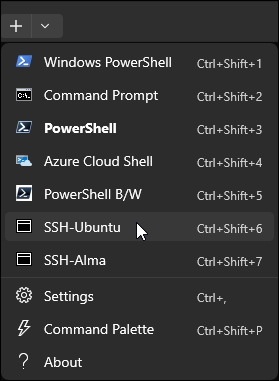
The next command should be run in the SSH-Ubuntu terminal you just opened.
Environment Check
Before proceeding, ensure that you are working in Windows Terminal in a SSH session to the Ubuntu VM.

Use Nmap to do a TCP full-connect scan (-sT) of every valid TCP destination port (-p 1-65535) on the Windows host. The --stats-every parameter will cause Nmap to give you frequent progress updates, and the -T4 will accelerate the scan rate since the host is on the same subnet as the Ubuntu VM.
sudo nmap --stats-every 30s -sT -T4 -p1-65535 10.50.7.101
Sample Results
student@ubuntu:~$ sudo nmap --stats-every 30s -sT -T4 -p1-65535 10.50.7.101
Starting Nmap 7.92 ( https://nmap.org ) at 2024-03-20 00:48 UTC
Stats: 0:00:30 elapsed; 0 hosts completed (1 up), 1 undergoing Connect Scan
Connect Scan Timing: About 10.56% done; ETC: 00:51 (0:02:24 remaining)
Stats: 0:01:00 elapsed; 0 hosts completed (1 up), 1 undergoing Connect Scan
Connect Scan Timing: About 41.82% done; ETC: 00:50 (0:01:05 remaining)
Stats: 0:01:24 elapsed; 0 hosts completed (1 up), 1 undergoing Connect Scan
Connect Scan Timing: About 83.04% done; ETC: 00:50 (0:00:16 remaining)
Nmap scan report for 10.50.7.101
Host is up (0.00059s latency).
Not shown: 65529 filtered tcp ports (no-response)
PORT      STATE SERVICE
22/tcp    open  ssh
135/tcp   open  msrpc
139/tcp   open  netbios-ssn
445/tcp   open  microsoft-ds
7680/tcp  open  pando-pub
49668/tcp open  unknown
MAC Address: 00:0C:29:50:75:08 (VMware)

Nmap done: 1 IP address (1 host up) scanned in 100.99 seconds
Live Data in Use!
Remember that your data may differ from these results!
You will likely find if you compare these results to the Get-NetTCPConnection results from the Windows VM that not everything listed as open on the host shows up in Nmap. This is because the Windows firewall is enabled on the Windows VM, blocking some of the ports from responding to Nmap. A more concerning circumstance would be if Nmap found a port not reported on the host! This could indicate that the system has been compromised and a rootkit installed! A result like that should be immediately reported to management for investigation.
Close the Ubuntu SSH tab when you have finished comparing results.
Part 5: Osquery
Environment Check
Before proceeding, ensure that you are working in Windows Terminal in PowerShell Core.
Background: The osquery tool mentioned in the lecture has two components: osqueryd is the background service that can run scheduled queries and record system events. osqueryi is the interactive command-line shell for osquery. In this section of the lab, you will explore how osquery works and then use osqueryi to gather information from your Windows VM.
Osquery uses a customized SQLite shell where you can run commands and queries. Like most Structured Query Language (SQL) dialects, osquery is case-sensitive in much of its data handling. This can make query creation for your audits more difficult, since much of the documentation for hardening Windows systems relies on the case-insensitivity of Windows. You'll explore where case-sensitivity matters in osquery and how to work with it as you work through this section.
Instructions: Start osquery in interactive mode.
osqueryi
Sample Results
PS > osqueryi
Using a virtual database. Need help, type '.help'
osquery>
Begin by retrieving a list of the virtual tables used by osquery.
.tables
Sample Results
osquery> .tables
  => appcompat_shims
  => arp_cache
  => atom_packages
  => authenticode
  => autoexec
  => azure_instance_metadata
  => azure_instance_tags
  => background_activities_moderator
...
[Results Truncated]
To find all tables having names beginning with "user," you can use the following command:
.tables "user"
Sample Results
osquery> .tables "user"
  => user_groups
  => user_ssh_keys
  => userassist
  => users
Case Sensitivity Alert!
The data definition language commands are largely case sensitive. Use .tables instead of .Tables.
The search string for the .tables command is also case sensitive. If you were to try the command above with different capitalization for the table search string, it would not work.
.tables "User"
The same limitations will be true for the schema command below.
If you would like to see the "schema," or design, of a database table, you can use the schema command.
.schema users
Sample Results
osquery> .schema users
CREATE TABLE users(`uid` BIGINT, `gid` BIGINT, `uid_signed` BIGINT, `gid_signed` BIGINT, `username` TEXT, `description` TEXT,
`directory` TEXT, `shell` TEXT, `uuid` TEXT, `type` TEXT, `is_hidden` INTEGER HIDDEN, `pid_with_namespace` INTEGER HIDDEN,
PRIMARY KEY (`uid`, `username`, `uuid`, `pid_with_namespace`)) WITHOUT ROWID;
Remember the difficulty you had earlier trying to get a comprehensive list of installed software on the Windows VM. Osquery provides a table called "programs" that contains information about all installed software. Begin by viewing the schema of the table to select which columns may be of interest.
.schema programs
Sample Results
osquery> .schema programs
CREATE TABLE programs(`name` TEXT, `version` TEXT, `install_location` TEXT, `install_source` TEXT, `language` TEXT, `publisher` TEXT,
`uninstall_string` TEXT, `install_date` TEXT, `identifying_number` TEXT);
Armed with the schema information, you can build a query for the information you need about installed programs:
select name, version, install_date from programs;
Sample Results
osquery> select name, version, install_date from programs;
+--------------------------------------------------------------------+----------------+--------------+
| name                                                               | version        | install_date |
+--------------------------------------------------------------------+----------------+--------------+
| SoapUI 5.8.0                                                       | 5.8.0          |              |
| 7-Zip 24.09 (x64)                                                  | 24.09          |              |
| Git                                                                | 2.50.0         | 20250627     |
| Mozilla Firefox ESR (x64 en-US)                                    | 128.12.0       |              |
| Mozilla Maintenance Service                                        | 128.12.0       |              |
| Python 3.13.5 Documentation (64-bit)                               | 3.13.5150.0    | 20250627     |
| OpenVPN Connect                                                    | 3.7.2          | 20250627     |
| Microsoft Visual C++ 2022 X64 Minimum Runtime - 14.44.35208        | 14.44.35208    | 20250627     |
| Python 3.13.5 pip Bootstrap (64-bit)                               | 3.13.5150.0    | 20250627     |
| Python 3.13.5 Executables (64-bit)                                 | 3.13.5150.0    | 20250627     |
| PowerShell 7-x64                                                   | 7.4.7.0        | 20250627     |
| Python 3.13.5 Add to Path (64-bit)                                 | 3.13.5150.0    | 20250627     |
| Microsoft Visual Studio Code                                       | 1.101.2        | 20250627     |
| Microsoft Edge                                                     | 138.0.3351.55  | 20250630     |
| Microsoft Edge Update                                              | 1.3.195.61     |              |
| Microsoft Edge WebView2 Runtime                                    | 137.0.3296.93  | 20250630     |
| Microsoft Visual C++ 2022 X86 Minimum Runtime - 14.44.35208        | 14.44.35208    | 20250627     |
| Microsoft Visual C++ 2022 X86 Additional Runtime - 14.44.35208     | 14.44.35208    | 20250627     |
| Python Launcher                                                    | 3.13.5150.0    | 20250627     |
| OpenOffice 4.1.15                                                  | 4.115.9813     | 20250627     |
...
[Results Truncated]
Live Data in Use!
Remember that your data may differ from these results!
Notice that osquery managed to find Firefox! This is an improvement over the built-in MSI system.
Case Sensitivity Alert!
Interestingly, SQL keywords, column and table names in SQL queries are not case sensitive in osquery! This command will work exactly like the one above:
SELECT name, Version, Install_Date FroM PrograMs;
Because osquery is a SQL database, normal SQL capabilities like JOIN queries are available to you. The following query makes use of JOINs on three tables to gather a list of all local administrators on the Windows VM:
select username, groupname, type
from users join user_groups on user_groups.UID = users.uid
join groups on groups.gid = user_groups.gid
where groups.groupname ='Administrators';
Sample Results
osquery> select username, groupname, type
    ...> from users join user_groups on user_groups.UID = users.uid
    ...> join groups on groups.gid = user_groups.gid
    ...> where groups.groupname ='Administrators';
+---------------+----------------+-------+
| username      | groupname      | type  |
+---------------+----------------+-------+
| Administrator | Administrators | local |
| student       | Administrators | local |
+---------------+----------------+-------+
The registry is exposed in osquery, also. You can check for the HKEY_LOCAL_MACHINE\SYSTEM\CurrentControlSet\Control\Lsa\LimitBlankPasswordUse key you audited earlier using a query to the registry table. Remember that you are looking for a value of 1 in the registry setting to ensure that blank passwords cannot be used.
select data, path from registry
where path = 'HKEY_LOCAL_MACHINE\SYSTEM\CurrentControlSet\Control\Lsa\LimitBlankPasswordUse';
Sample Results
osquery> select data, path from registry
    ...> where path = 'HKEY_LOCAL_MACHINE\SYSTEM\CurrentControlSet\Control\Lsa\LimitBlankPasswordUse';
+------+-------------------------------------------------------------------------------+
| data | path                                                                          |
+------+-------------------------------------------------------------------------------+
| 1    | HKEY_LOCAL_MACHINE\SYSTEM\CurrentControlSet\Control\Lsa\LimitBlankPasswordUse |
+------+-------------------------------------------------------------------------------+
Case Sensitivity Alert!
Using the = operator to match the data in a text column will result in case-sensitive matching. Any change in case in the registry key above will result in no results being returned. This query would fail:
select data, path from registry where path =
"HKEY_LOCAL_MACHINE\SYSTEM\CurrentControlSet\Control\Lsa\limitblankpassworduse";
To solve this problem, we prefer to use the case-insensitive like operator instead of the = operator. This query WILL return a result:
select data, path from registry where path like
"HKEY_LOCAL_MACHINE\SYSTEM\CurrentControlSet\Control\Lsa\limitblankpassworduse";
An alternative would be to use the COLLATE NOCASE command to cast the column to be non-case-sensitive.
select data, path from registry where path =
"HKEY_LOCAL_MACHINE\SYSTEM\CurrentControlSet\Control\Lsa\limitblankpassworduse"
COLLATE NOCASE;
Extra Osquery Challenge
On your own, try to check the settings for the other registry setting mentioned above. We've included the policies here for your convenience. Remember that your SQL queries are case sensitive, so use the like operator or the COLLATE NOCASE keywords to solve any problems you have!
- Blank passwords will not be allowed. The
HKEY_LOCAL_MACHINE\SYSTEM\CurrentControlSet\Control\Lsa\LimitBlankPasswordUseregistry key should be set to a value of 1. - The older LMHash format will not be used for local password hashes. The
HKEY_LOCAL_MACHINE\SYSTEM\CurrentControlSet\Control\Lsa\NoLMHashkey should be set to a value of 1. - Anonymous enumeration of accounts and shares will be disabled. The
HKEY_LOCAL_MACHINE\SYSTEM\CurrentControlSet\Control\Lsa\RestrictAnonymouskey should be set to a value of 1. - Workstations will notify the user whenever a program tries to make changes to the computer. The
HKEY_LOCAL_MACHINE\SOFTWARE\Microsoft\Windows\CurrentVersion\Policies\System\EnableLUAkey should be set to a value of 1.
Solutions
Remember that registry key names will be case sensitive, so you'll need to account for that as you write your queries. Our suggestions are below:
Blank Passwords: This control should PASS with a data value of 1.
select data, path from registry where path like
"HKEY_LOCAL_MACHINE\SYSTEM\CurrentControlSet\Control\Lsa\limitblankpassworduse";
LM Hashes: This control should PASS with a data value of 1.
select data, path from registry where path like
"HKEY_LOCAL_MACHINE\SYSTEM\CurrentControlSet\Control\Lsa\NoLMHash";
Anonymous share/account enumeration (restrictanonymous): This control should FAIL with a value of 0, since the expected value is 1.
select data, path from registry where path like
"HKEY_LOCAL_MACHINE\SYSTEM\CurrentControlSet\Control\Lsa\RestrictAnonymous";
LUA Notification (EnableLUA): This control should PASS with a value of 1.
select data, path from registry where path like
"HKEY_LOCAL_MACHINE\SOFTWARE\Microsoft\Windows\CurrentVersion\Policies\System\EnableLUA";
When you are finished, use this command to exit osquery:
.quit